

Support Tickets: How to Get a Fast, Clear Answer from Coneberry
When something is not clear, you want an answer without hunting for the right inbox, repeating yourself or wondering whether anyone saw your message. That is what a support ticket is for: one message, one thread, one place to read the reply. Used well, it is the fastest way to settle a question that is bigger than a chat message or not tied to a single order.
Coneberry is one place to get articles and press releases published on real news and business websites, so your brand builds reputation and authority online. You work in the dashboard at dashboard.coneberry.com, and support lives there too. This guide explains what a support ticket is, when it is the right channel, how to open one and how to write it so you get a useful answer the first time.
What a support ticket is
A support ticket is a conversation with the Coneberry team that is recorded on your account. You write a subject and a message, the team replies underneath, and you can answer in the same place. Everything stays together, so you can scroll back, see what was said and when, and pick up a thread days later without searching your email.
Also worth a look: Live Chat Support for PR Orders: When to Use It and When to Use Something Else and Browser Notifications: Never Miss a Message or Live Link.
Tickets are separate from order Messages. The order chat belongs to one order and is read by the team handling that order. A ticket belongs to you and your account.
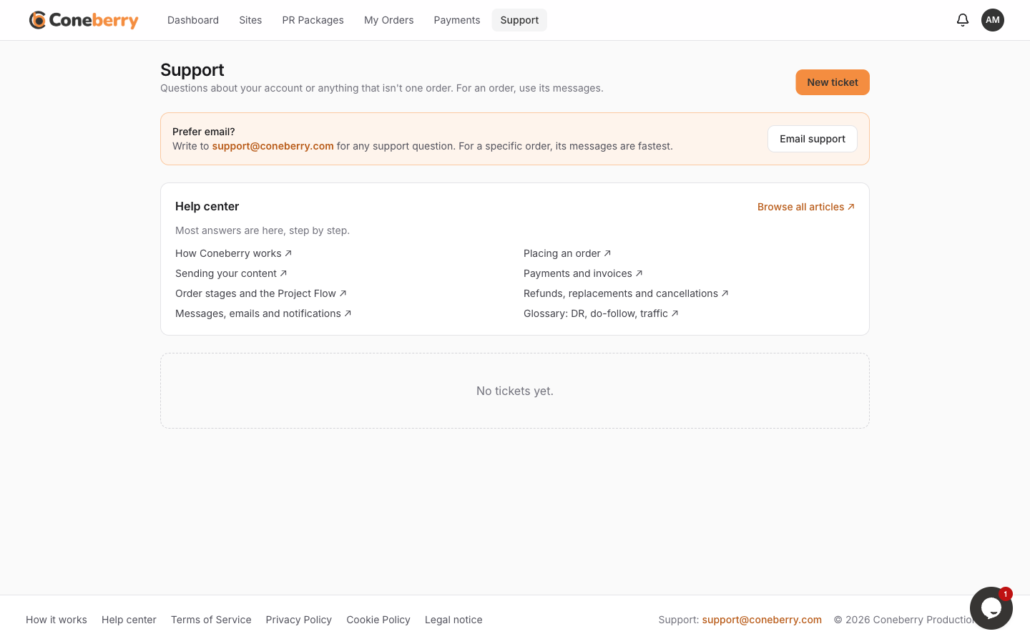
The Support page lists your tickets and lets you open a new one.
Which channel should you use?
Coneberry gives you four ways to reach us. Each has a purpose:
- Order Messages: the best place for anything about a specific order, such as feedback on a draft, a new link or a question about publication. The team that works on your order sees it immediately.
- Live chat: a bubble at the bottom right of the page on computers and tablets, good for a quick question. It is hidden on phones.
- Support tickets: best for anything not tied to one order, or when you want a written record.
- Email: support@coneberry.com for anything, including reports of problems.
If you are unsure, a ticket is never wrong. We can move the conversation to the right place. The article on getting help compares the channels, and using the live chat covers the chat bubble.
Good reasons to open a ticket
- You want to change details on your account or invoices that cover more than one order.
- You have a question about how Coneberry works before you order.
- You are an agency or a company with a bulk or ongoing need and want to talk through it.
- You have feedback, a suggestion or a complaint.
- You want to report a problem with the dashboard itself.
- You need something in writing, such as a clear answer you can show a colleague.
How to open a ticket, step by step
- Open Support in your dashboard.
- Press New ticket.
- Write a subject that says what it is about, for example “Invoice question for two orders”.
- Describe the situation in a few short sentences and send.
Tickets also work on a phone, so you can use one when the chat bubble is not available.
How to write a ticket that gets a fast answer
The team usually replies within one working day, and the clearer your message, the fewer follow-up questions are needed. Include:
- The order number, if any, such as CB-1001JD-1.
- What you expected and what you saw instead.
- Any link or attachment that helps, such as a page address or a screenshot.
- The deadline, if you have one, so it can be considered.
Keep one topic per ticket. Two unrelated questions in one message are harder to track than two short tickets. And please leave out card numbers and passwords: Coneberry never asks for them in tickets, chat or email.
Reading and answering the reply
Our reply appears under the ticket and is emailed to you. When you want to answer, write in the box under the ticket on the Support page. Do not reply to the email: it comes from noreply@coneberry.com, and replies there are not read. Pressing the link in the email takes you straight to the ticket.
If you have turned on browser notifications, you can also get an alert when a reply arrives. Remember that times on the dashboard are shown in US Eastern time, so a message sent in the evening there will be answered the next working day.
When not to use a ticket
If your question is about an order in progress, write in that order’s Messages instead. The team handling it can answer faster, and the answer sits next to the Project Flow checklist, where it is most useful. If you want to cancel or change what you ordered, also use the order chat and mention what you would like to do. The rules on refunds, replacements and cancellations explain what is possible at each stage. For serious matters, such as a rights issue with content or a security concern, email support@coneberry.com so that it is reviewed straight away.
A sample ticket
To see what a good ticket looks like, here is one. Subject: “Question about invoices for two orders”. Message: “Hello, I have two open orders, CB-1001JD-1 and CB-1002JD-1. I would like both invoices to show my company name, not my personal name. Can you update this before I pay? I plan to pay on Friday.” It names the orders, states one clear request and gives a date, so the team can act in a single reply.
Frequently asked questions
Is there a limit on tickets?
No. Open one whenever you need to.
Can I attach a file?
Yes, where the ticket form offers it. Keep files small and relevant. In an order chat, files up to 10 MB are accepted.
Will I get an email when you reply?
Yes. Replies to your support tickets are one of the few things Coneberry emails you about.
What if I do not have an account yet?
Email support@coneberry.com. Tickets are part of the free dashboard account.
Ask us anything
Questions before you order are welcome too. You can browse more than 5,000 publications for free, with no account needed, at dashboard.coneberry.com/user/sites, and open a ticket from your free account whenever you want a written answer.
More step-by-step help is in the Coneberry Help Center.


