

How to Get Help from Coneberry: Chat, Tickets and Email
You have a question and want an answer now. But where do you ask it? Email, chat, an order message or a form: too many choices can be as frustrating as none. At Coneberry the choice is simple once you know the rule: ask where the question belongs, and the right person sees it with the full context.
Coneberry is one place to get articles and press releases published on real news and business websites, so your brand builds reputation and authority online. Orders, content, payments and support all live in the client dashboard. This guide explains how to get help, which channel suits which question and what to expect in reply.
Getting help: the four channels at a glance
There are four ways to reach the team. They overlap a little, but each has a best use.
Also worth a look: Support Tickets: How to Get a Fast, Clear Answer from Coneberry and Live Chat Support for PR Orders: When to Use It and When to Use Something Else.
- Order Messages for anything about a specific order.
- Live chat for a quick question on a computer or tablet.
- Support tickets for anything not tied to one order.
- Email to support@coneberry.com as a general, always-available route.
Behind all of them is the same team, and the same promise: a reply usually within one working day, with times shown in US Eastern time.
Order Messages: the best place for order questions
Every order has a Messages chat next to its Project Flow checklist. If your question is about the content, a draft, a live link, an invoice for that order or a publication, write there. The team handling your order gets it, the history stays attached to the order and nobody has to ask which order you mean. You can send text, links and files up to 10 MB, and replies appear by themselves.
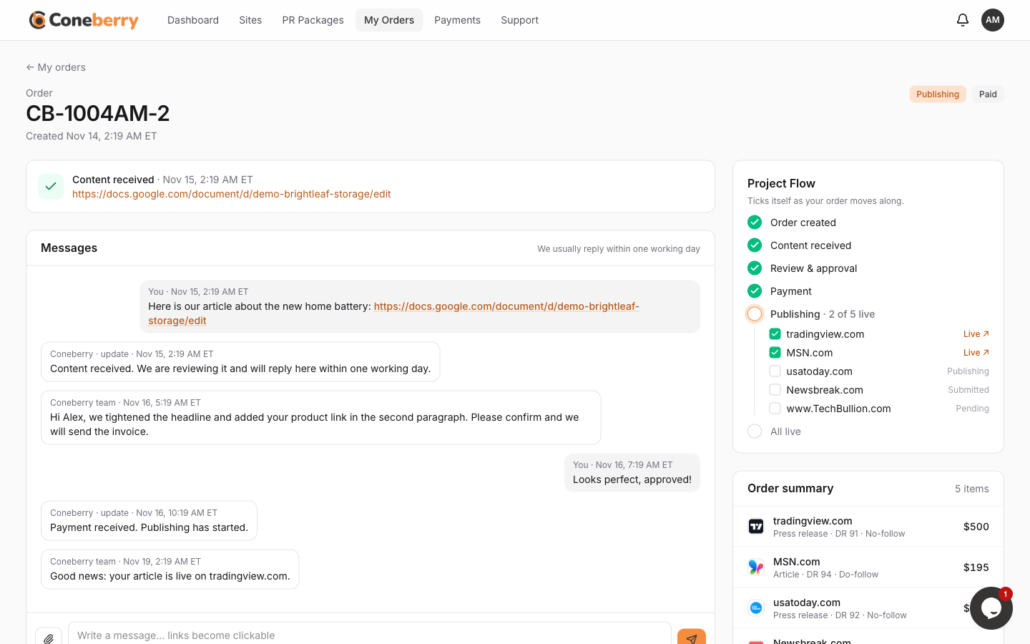
Order Messages keep every conversation about an order in one place.
Live chat for quick questions
On computers and tablets, a chat bubble sits at the bottom right of every page. Use it for short questions such as “which package fits a finance announcement?” or “where do I find my invoice?”. It is hidden on phones to keep the screen clear, so on a phone use a ticket or email. The details are in Using the live chat.

The live chat bubble sits at the bottom right of the page.
Support tickets for everything else
A ticket is a written conversation recorded on your account. Use it for account questions, invoices covering more than one order, partnership or bulk enquiries, feedback and problem reports. To open one, go to Support, press New ticket, add a subject and message and send. Our reply appears under the ticket and arrives by email; you answer in the box under the ticket. See Support tickets: when and how to use them for tips on writing a good one.
Email: support@coneberry.com
Email is useful when you are not logged in, when you use a phone and prefer mail, or when you want to report content, a rights issue or a security concern. We review every report. When you write, include your order number if you have one.
One thing to remember: notification emails from Coneberry come from noreply@coneberry.com. Replies to that address are not read. Press View Order in the email instead, or write to support@coneberry.com.
The Help Center and self-service
Many questions have a written answer. The Help Center covers ordering, content, payments, refunds and your account. Start with the frequently asked questions, then use the search box. If an article does not solve it, you can reach the team using any of the channels above, and your question helps us improve the articles.

The Help Center answers most common questions.
What speeds up an answer
- Write in the right place: order questions in the order chat.
- Include the order number, such as CB-1001JD-1.
- Say what you want to happen and by when.
- Attach or link anything that helps, such as a document or screenshot.
- Never include card numbers or passwords. Coneberry never asks for them.
If you do need to pay, use Pay now on your order. It opens a secure payment page. See Payments and invoices.
Choosing a channel: three quick examples
Example one. Your draft has a wrong job title. Write it in the order Messages, because the team editing the draft sees it at once and the fix is recorded next to the draft.
Example two. You are not logged in and cannot remember which email you used. Write to support@coneberry.com and the team will help you find your account.
Example three. You are comparing two PR packages and want a second opinion before ordering. Use the live chat bubble on a computer or tablet for a quick answer, or open a ticket if you would like it in writing. You can also open the Details view of each package to see its outlets and sample report first.
In each case the aim is the same: put the question where the people who can answer it, and the history they need, are already looking. The channels are not rivals, and if you pick the wrong one, the team will still answer and point you to the right place.
Support hours and time zones
Times on the dashboard are shown in US Eastern time. We usually reply within one working day, so a message sent on a Friday evening in Eastern time may be answered on the next working day. If something is time-sensitive, say so in your first message and give the date, so it can be taken into account. Where a deadline depends on a publication, remember that publishing times come from the publishers and are not guaranteed.
Frequently asked questions
How quickly will I get a reply?
Usually within one working day. Times on the dashboard are US Eastern time.
Can I call someone?
Support runs through order messages, live chat, tickets and email, so there is a written record of what was agreed.
Why is the live chat missing on my phone?
It is hidden on phones to keep the screen clear. Use a ticket or email there.
Who do I tell about a problem with content?
Email support@coneberry.com. We review every report.
Start browsing, ask when you need to
You can browse more than 5,000 publications for free, with no account needed, at dashboard.coneberry.com/user/sites. If you have a question on the way, use any channel above and we will help.
More step-by-step help is in the Coneberry Help Center.


