

Browser Notifications: Never Miss a Message or Live Link
You have placed an order, sent your content and now you are waiting for a message, an invoice or a live link. Do you want to refresh a page all day to find out? Browser notifications are the quiet alternative: a small alert on your screen the moment something needs you, even when you are working in another tab or have closed the Coneberry page entirely.
Coneberry is one place to get articles and press releases published on real news and business websites, so your brand is seen on trusted publications and found in search and AI answers. The client dashboard is where you order, approve and follow everything. This guide covers one small but useful feature of it: browser notifications, how to turn them on, what they tell you and how to turn them off.
What browser notifications are
A browser notification is a short pop-up that your browser shows in the corner of your screen. It comes from a website you have allowed, in this case the Coneberry dashboard. Because it is handled by the browser, it can appear even when the tab is closed, as long as the browser itself is running.
Also worth a look: Messages, Emails and Notifications: How Coneberry Keeps You Informed and Who to Contact and Where: How Communication Works When You Buy Online PR.
You will probably recognise them from email, calendar or chat apps. Coneberry uses them in the same way, only for things that matter to your orders.
What you are notified about
Coneberry keeps the list short on purpose:
- New messages from the team on your order, for example a draft to approve or a question about your content.
- New invoices and payment links, so you can pay without hunting through email.
- Live links, the moment a publication posts your article or press release.
These are the same events that trigger emails. Other updates, such as “content received”, are visible on the order, the dashboard and the bell, but do not interrupt you.
How to turn them on
It takes under a minute.
- Log in at dashboard.coneberry.com.
- Coneberry offers to turn on notifications. Press Turn on.
- Your browser asks whether to allow notifications. Choose Allow.

After login, Coneberry offers to turn on notifications.
That is all. The next message, invoice or live link will arrive as a notification. Notifications are set per browser and per device, so if you use a laptop and a desktop, turn them on in each. You will find the same steps in the short help article.
How to turn them off, or back on
The browser owns the permission, so you change it in the browser:
- Click the padlock or settings icon next to the web address while on the dashboard.
- Open Site settings or Permissions.
- Set Notifications to Block to switch them off, or Allow to switch them on.
Reload the page after changing it. The exact wording differs a little between Chrome, Edge, Safari and Firefox, but the idea is the same: look for the site settings of the dashboard and find the Notifications line.
If you clicked Block by mistake
Browsers do not ask again after a block, which is a good thing for privacy but easy to trip over. Open the site settings, switch Notifications from Block to Allow and reload. If you cannot find it, your device may be blocking all notifications for the browser. On Windows check Focus Assist or notification settings, and on a Mac look at Notifications in System Settings.
Notifications, emails and the bell: which should you use?
You can use all three, or only one. A simple way to choose:
- Browser notifications suit you if you work at a computer and want to react quickly, for example to approve a draft.
- Email suits you if you prefer to deal with things in batches. Emails are sent only for team messages, invoices, live links and ticket replies, and all emails for one order arrive in one thread. You can change this in Notification settings.
- The bell and dashboard are always on. The bell shows a count of unread updates, and the dashboard lists every site and its status.
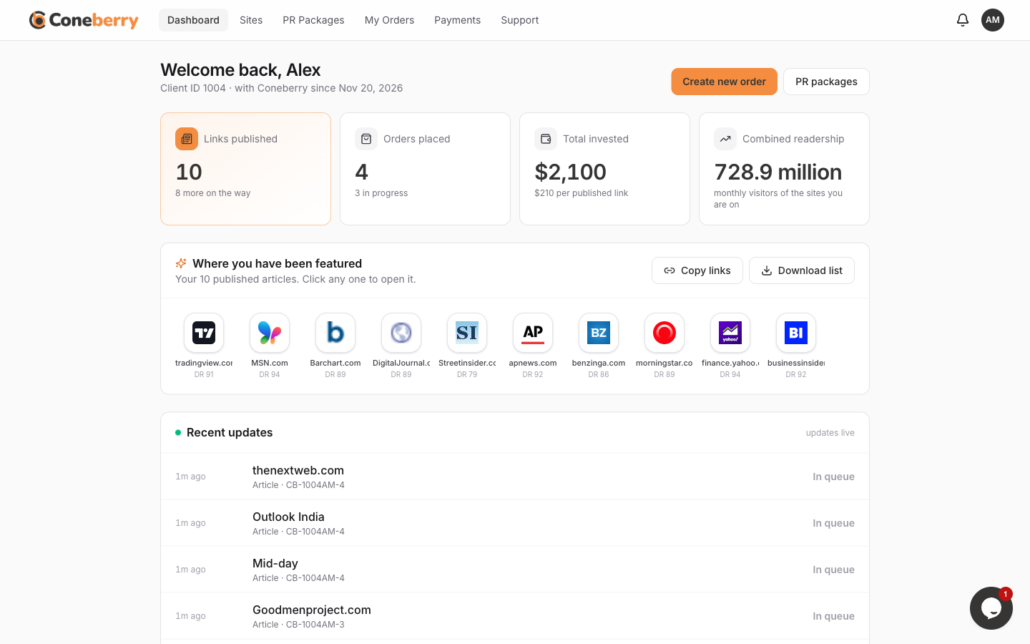
The dashboard and bell always show your latest updates.
Turning one channel off never hides information. Everything remains on your order.
Privacy and control
Notifications show only short text, such as that a new message has arrived. They never include card details, and Coneberry never asks for payment information by notification, email or chat. If you share a computer, you can block notifications in the browser so others do not see order alerts on screen. You can read more in your profile, account and privacy.
Troubleshooting checklist
If notifications are not arriving, work through this short list. Most problems are fixed by the first two items.
- Confirm that Notifications is set to Allow in the site settings for the Coneberry dashboard.
- Check that your operating system is not silencing the browser. Do Not Disturb, Focus Assist and similar modes hide alerts until you turn them off.
- Make sure the browser is running. Some browsers only deliver alerts while they are open in the background.
- Avoid private or incognito windows, which often block notifications.
- Log out and in again, then press Turn on once more if the offer appears.
If you are still stuck, open a ticket or write to support@coneberry.com and tell us which browser and device you use. The support tickets guide shows how.
A sensible setup for most people
For a single owner who checks email often, email alone is usually enough. For a team where one person approves content and another pays invoices, browser notifications on each person’s computer shorten the wait. Whichever mix you pick, the team still sees your replies in the order Messages, so nothing depends on a notification arriving. Notifications are a convenience, not a requirement, and your order moves forward the same way with or without them.
Frequently asked questions
Do I need an account to receive notifications?
Yes. They belong to your logged-in dashboard, which needs a free account. Browsing publications needs no account.
Why did the prompt never show?
You may have answered it before, your browser may be in private mode, or notifications may be blocked on your device. Check the site settings first.
Will notifications work on my phone?
That depends on your phone and browser. Many mobile browsers support them once allowed. If yours does not, email and the dashboard still keep you informed.
Can I get notifications without email?
Yes. The two are separate. Switch off email in Notification settings and keep browser notifications on, or the reverse.
See it in action
The best way to understand notifications is to place a first order and watch them arrive. You can browse more than 5,000 publications for free, with no account needed, at dashboard.coneberry.com/user/sites.
More step-by-step help is in the Coneberry Help Center.


