

Messages, Emails and Notifications: How Coneberry Keeps You Informed
Ordering a press release or a guest article should not mean living in your inbox. Yet many services bury clients under status emails, or leave them guessing what is happening. On Coneberry, the way messages, emails and notifications work is designed to keep one thing simple: you always know where to look, and you are only interrupted when something needs you.
Coneberry is one place to get articles and press releases published on real news and business websites, so your brand is seen on trusted publications, found in search and mentioned in AI answers. Everything runs in the client dashboard, and so does the conversation with the team. This guide explains how those messages, emails and notifications fit together, so you can set them up the way you like.
One conversation per order
Every order has its own Messages chat on the order page. It is the single place for anything about that order: questions about content, feedback on a draft, a link you want to include, or a file you want to share. Because the chat sits next to the Project Flow checklist, the team and you see the same order, the same status and the same history.
Also worth a look: Who to Contact and Where: How Communication Works When You Buy Online PR and Your Coneberry Dashboard: Track Every Link, Order and Result.
This matters more than it sounds. When a question lives in an email thread that someone forgot to copy a colleague on, details get lost. When it lives on the order, nothing is lost. Anyone on your side who opens the order sees the whole story.
The Messages box opens after you submit your content, or after you answer the questions if you asked Coneberry to write the article. Type your message and send it. Links turn clickable by themselves, and new replies appear without refreshing the page.
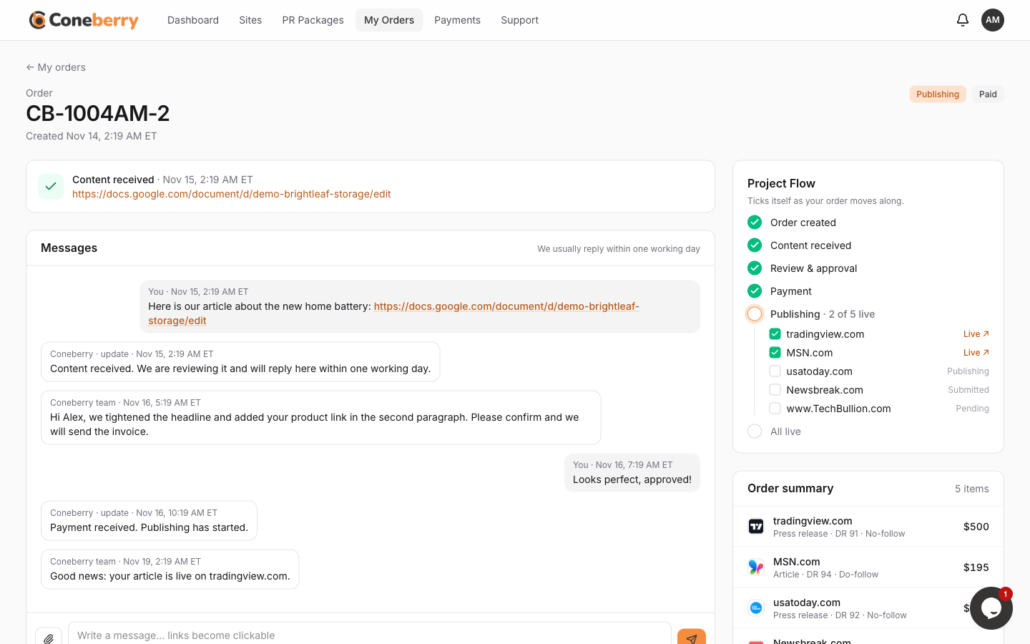
The Messages chat sits on every order page.
Sending files and links
Use the paperclip to attach a file up to 10 MB. You can send PDF, Word, Excel, PowerPoint, text, CSV, image (JPG, PNG, GIF, WebP) and ZIP files. This is handy for a logo, a product photo, a fact sheet or a brief. For articles themselves, a Google Docs link works best, shared as “Anyone with the link: Viewer”. You can read more in Sending your content (Google Docs).
What lands in your inbox
Coneberry sends email only for things that need your attention:
- a message from the team on your order
- an invoice and its payment link
- a live link, when a publication goes live, and a note when all your links are live
- a reply to a support ticket
Nothing else. Routine updates such as “content received” or a status change do not generate email. You will see them on the order, on your dashboard under Recent updates, and under the bell at the top of the page.
All emails about one order arrive in a single email thread. If you place several orders, you get several threads, each easy to find and easy to ignore until you need it.
Why the emails come from a no-reply address
Notification emails are sent from noreply@coneberry.com. Replies to that address are not read. That can feel odd at first, but it is deliberate: if your reply went into a mailbox, it would be separated from the order, the draft and the history. Instead, each email has a View Order button. Press it, write your reply in the order’s Messages, and the right people see it in context.
If you need to reach Coneberry about something that is not tied to an order, use a support ticket or write to support@coneberry.com. The article on getting help explains which channel suits which question.
The bell and the dashboard
The bell at the top of every page shows a count of unread updates. Click it and you see what changed: a new message, an invoice, a link that went live. Your dashboard adds a live “Recent updates” list with the status of every site in every order, plus a “needs you” section for anything waiting on your side, such as content to add or an invoice to pay.
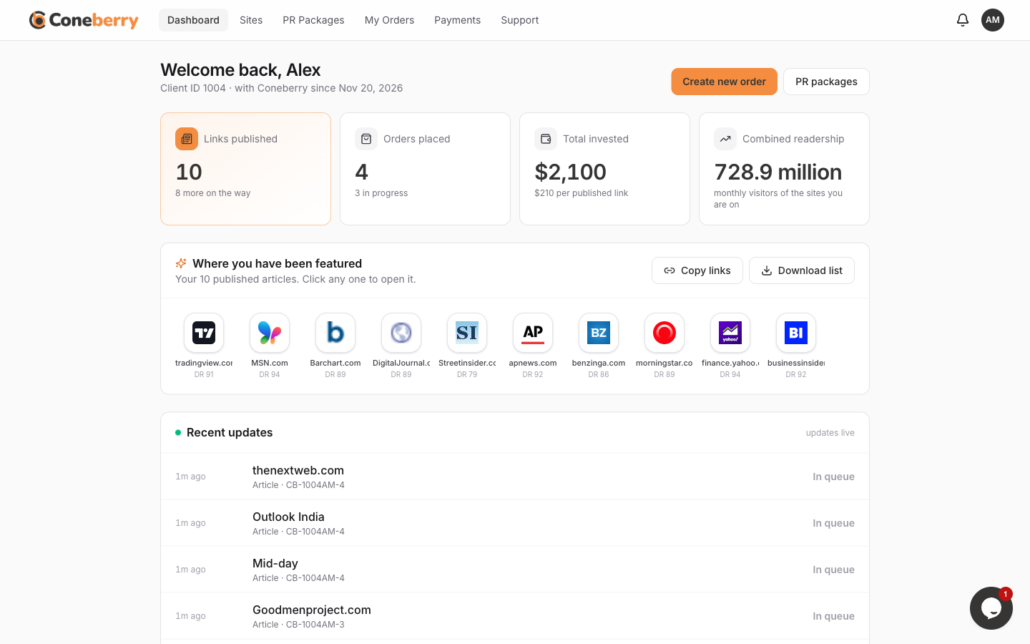
The dashboard shows live updates and what needs you.
Browser notifications for the busy
If you do not want to keep the tab open, turn on browser notifications. After you log in, Coneberry offers to switch them on. Press Turn on, allow notifications in your browser, and you receive an alert for new messages, invoices and live links even when the Coneberry tab is closed. You can turn them off at any time in your browser’s site settings. The step-by-step version is in this help article.

After login, Coneberry offers to turn on notifications.
Changing your notification settings
Open Notification settings from the menu with your initials at the top right. There you can switch email notifications on or off. Updates always remain visible in the dashboard, so turning email off never hides anything. It only means you check the dashboard instead of your inbox.
When replies are slow to arrive
The team usually replies within one working day, and times in the dashboard are shown in US Eastern time. If you wrote late in the evening Eastern time, expect the answer the next working day. If an email you expected has not arrived, check your spam or promotions folder and mark Coneberry as not spam. Still nothing? Look on the order itself, because everything that was sent by email is also visible there.
Frequently asked questions
Can I reply to a Coneberry email directly?
No. Replies to noreply@coneberry.com are not read. Press View Order in the email and write in the order’s Messages.
Will I get an email for every status change?
No. Emails are limited to messages, invoices, live links and ticket replies. Other updates show on your order, dashboard and bell.
Is there a size limit for files?
Yes, 10 MB per file. For larger material, share a link to a cloud folder in the chat.
Can I use the chat on my phone?
The order Messages work in any browser, including on a phone. The live chat bubble is hidden on phones, so use the order chat, a ticket or email instead.
Try it on your first order
Messages, emails and notifications are easy to understand once you see them on a real order. You can browse more than 5,000 publications for free, with no account needed, at dashboard.coneberry.com/user/sites. Open a free account when you are ready to order, and the chat opens as soon as you send your content.
More step-by-step help is in the Coneberry Help Center.


