

Who to Contact and Where: How Communication Works When You Buy Online PR

Buying PR coverage involves a lot of small conversations: Is my content approved? When is the invoice due? Which sites went live? If those conversations are scattered across email threads, chat apps and spreadsheets, things get lost. Good PR order communication keeps every question and answer in one place, and tells you the moment something needs your attention.
This guide explains how communication works on Coneberry: the order chat, emails, browser notifications, the live chat, support tickets and the support email. It also helps you pick the right channel for each question. We begin with a short overview for anyone new to Coneberry.
What is Coneberry?
Coneberry is one place to get articles and press releases published on real news and business websites, so a brand builds its reputation and authority online. You browse more than 5,000 publications in the client dashboard, choose sites or PR packages, send your content (or ask Coneberry to write it), approve it, pay and receive live links. Signing up is free. The communication tools below sit around that process.
Also worth a look: Your Coneberry Dashboard: Track Every Link, Order and Result and Refunds and Cancellations for Guest Posts and Press Releases: What to Expect.
The order chat: your main channel
Every order has a Messages chat. It is where the team shares drafts, answers questions, posts invoices and announces live links. You can send text, links and files up to 10 MB. New replies appear by themselves, so you do not need to refresh the page.
The key benefit is context. Everything about the order is in one thread: what you asked, what the team replied, which version you approved. If a colleague takes over, they can read the history and carry on.
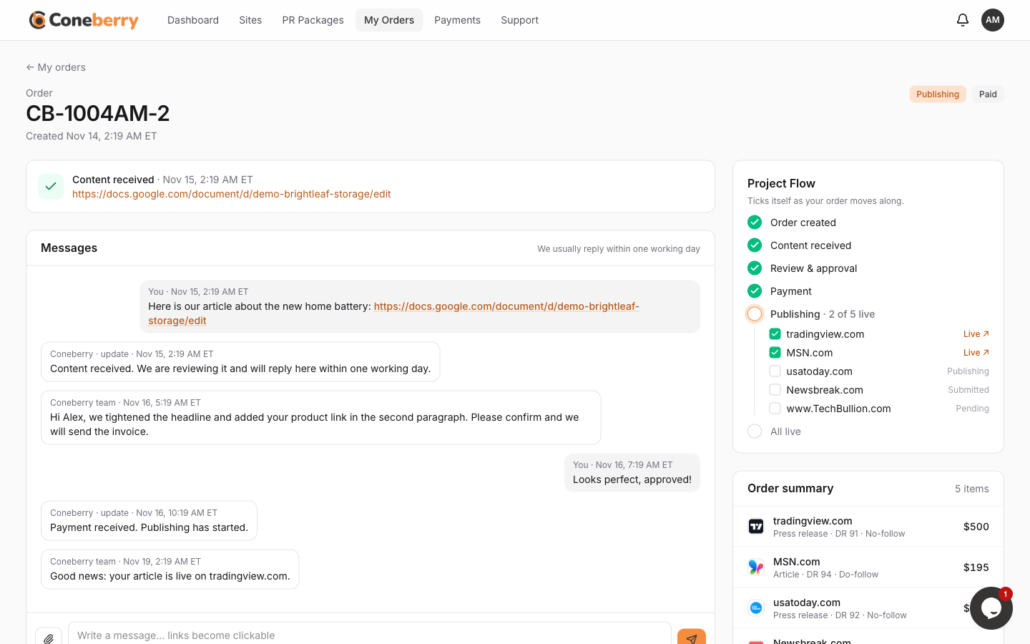
The Messages chat keeps every question, draft and link for the order in one place.
Emails: only what needs you
Coneberry does not flood your inbox. Emails come from noreply@coneberry.com and only for things that need you: a team message, an invoice and payment link, a live link, or a reply to a support ticket. All emails about one order are grouped in a single email thread, so the whole story sits together in your mail app. Replying to the team is easiest in the order chat or by writing to support.
Notifications: stay informed without the inbox
After you log in, Coneberry offers to turn on browser notifications. If you press Turn on, you are alerted to new messages, invoices and live links even when the tab is closed. Inside the dashboard, a bell at the top shows unread updates. You can change the setting at any time. See how to turn notifications on or off.

The prompt after login lets you turn on browser notifications.
Live chat for quick questions
A chat bubble sits at the bottom right of the dashboard on computers and tablets (it is hidden on phones). Use it for a short question when you do not want to open a ticket, such as how a filter works. Our guide to the live chat covers it in detail.
Support tickets for everything outside an order
When your question is not tied to one order, such as account access, a billing question that spans orders or general advice, open a ticket on the Support page. Replies appear in the ticket and arrive by email. You can read more in support tickets: when and how to use them.
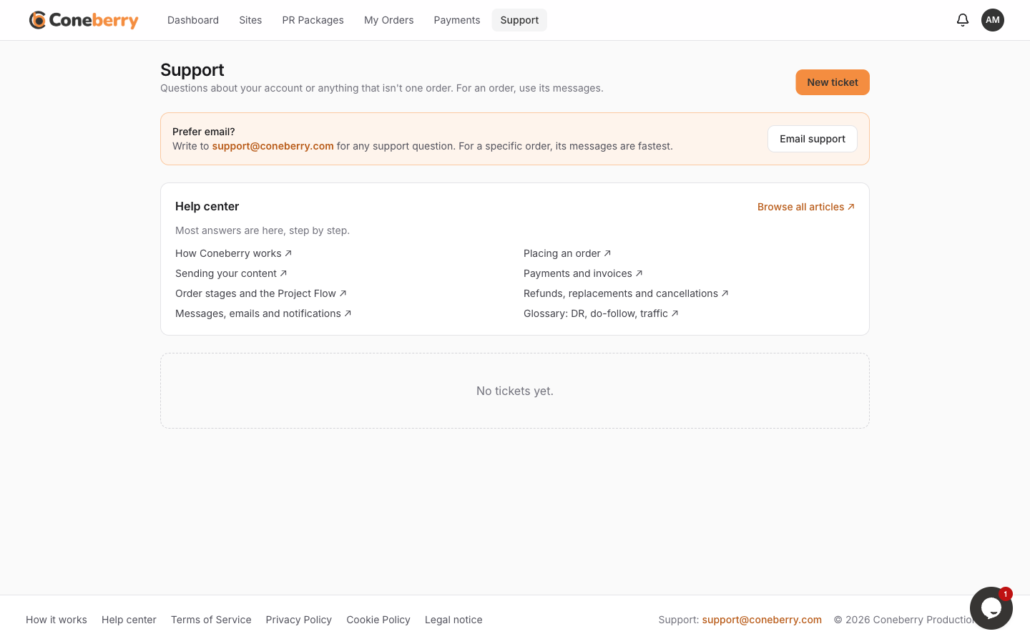
The Support page lists your tickets and lets you start a new one.
Which channel should you use?
- Content, approval, payment or links for an order: the order’s Messages.
- A quick how-do-I question: the live chat.
- An account issue or a general question: a support ticket.
- Preference for email: support@coneberry.com.
When in doubt, write in the order. The team can see the whole history there, which makes answers faster and more accurate.
How quickly do you get a reply?
Replies usually arrive within one working day. Dashboard times are shown in US Eastern time, so keep that in mind when you write near the end of your day. The team also reviews content usually within one working day, so most waits are short.
How do you stay safe?
A simple rule: Coneberry never asks for card details, passwords or codes by email or chat. Payments are made on the secure page opened by Pay now, and invoices are always visible under Payments. If a message asks for anything else, ignore it and tell support.
Making communication work for a team
If several colleagues work with Coneberry, a little structure helps. Agree who is the main contact for each order, so the team knows who approves content and who pays invoices. Keep every instruction in the order’s Messages rather than in side conversations, so anyone who joins later can read what was decided.
Use clear subject lines in tickets and short, specific messages in chats. Name the order number, the site and what you need. If a deadline matters, state the date and time zone, remembering that dashboard times are in US Eastern time. Attach files in the chat when they are small, and share a Google Docs link for longer documents, with sharing set to “Anyone with the link: Viewer”.
Finally, check the bell and the dashboard home regularly. They show what needs you and your latest messages, which is the quickest way to catch an approval or invoice that is waiting.
One last point: communication on Coneberry is built so that nothing important depends on you watching your inbox. The Project Flow on each order shows exactly which stage you are at, the dashboard home lists what needs your attention, and the Recent updates panel shows the live status of every site in every order. If you ever feel unsure where an order stands, those pages answer the question without a single message, and you can still write to the team at any moment.
Frequently asked questions
Do I have to check my email to follow an order?
No. The order page and the Project Flow checklist show the status at any time, and notifications and the bell tell you when something needs you.
Can I send files in the chat?
Yes, files up to 10 MB, along with text and links.
Why am I not seeing the chat bubble on my phone?
It is hidden on phones. Use the order Messages, a support ticket or email instead.
Can I contact the team without an order?
Yes. Open a support ticket or email support@coneberry.com.
See how it feels
You can look through publications and packages without an account, and sign-up is free when you are ready to order. Start at dashboard.coneberry.com/user/sites.
More step-by-step help is in the Coneberry Help Center.


