

Content Review and Approval: How Your Article Gets the Green Light
Handing over an article or press release to be published under your brand’s name is a little nerve-wracking. Who reads it first? Can you change it? Will it go live without you having seen the final version? A clear content approval process is the answer to all three, and it is built into every order on Coneberry.
Coneberry is a place to get articles and press releases published on real news and business websites, so your brand is seen on trusted publications, found in search and mentioned in AI answers. Orders are managed from a free dashboard at dashboard.coneberry.com. This guide covers the stage after you send your content: review and approval. The short version is that our team checks it, you approve it, and nothing is published without your yes.
Where does review fit in the order?
Every order follows the same sequence, shown in the Project Flow checklist on the right of the order page: Order created, Content received, Review & approval, Payment and Publishing. Review comes straight after you send the content, whether that was a Google Doc or answers to the questionnaire. Read understanding order stages and the Project Flow for the whole picture.
Also worth a look: No Content Yet? How Coneberry Writes Your Article or Press Release and How to Send Your Article or Press Release for Publishing: A Google Docs Guide.
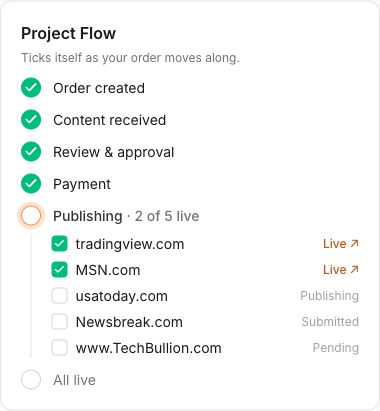
Review & approval is the third step in the Project Flow.
When you send the content, the order shows Content received and the Messages chat opens. From that moment our team is working, and the status tells you whose turn it is.
What does the team check?
The review is a practical quality and compliance pass, not a rewrite of your voice. It is normally finished within one working day. The team looks at:
- Access and completeness. Does the document open? Is the piece finished? If a link is locked, we say so in your messages.
- Fit with the guidelines. Each site and package has its own limits on words, images and links. Content that goes beyond them has to be trimmed.
- Topic eligibility. Finance, crypto, health, supplements, gambling and adult topics are only published on sites that accept them. The team checks the match so you do not lose time to a refusal later.
- Honesty and rights. No misleading claims, and only text and images you have the right to use.
If you would like to prepare for this step, how to write a guest post that publications accept and how to write a press release that gets published list the things reviewers look for.
How does the preview work?
When the content is ready, the team may share a preview in the order’s Messages. The status changes to Preview ready for your approval, which marks your turn. You read it exactly as you would read a draft from a colleague. If everything is right, say so in the chat. If not, say what to change.
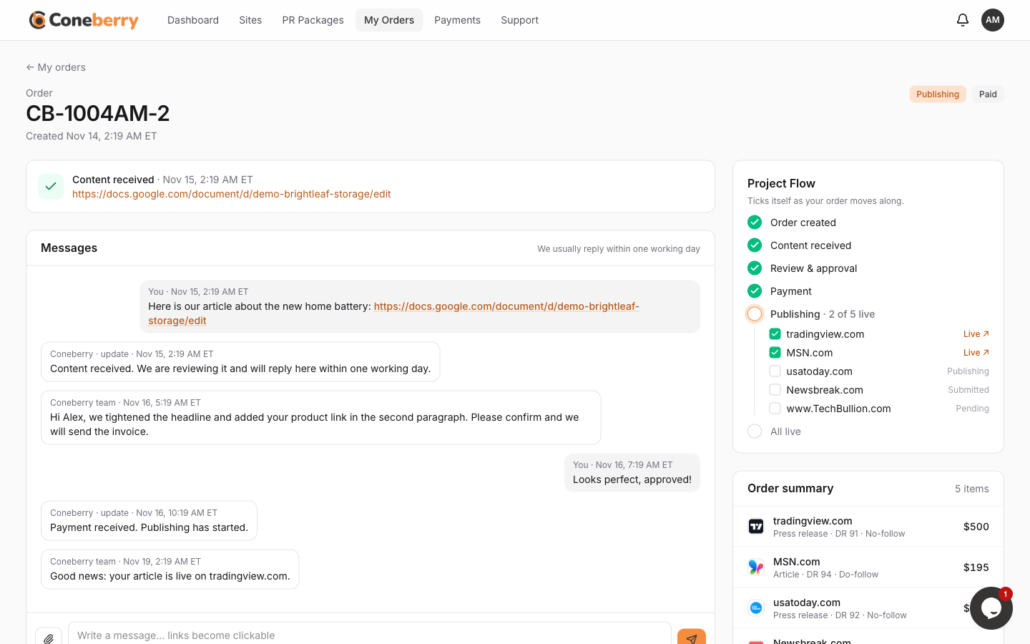
Previews, questions and approvals all happen in the order chat.
Because every message sits in one thread, the history is easy to find later. You do not need to search your inbox. Emails about the order arrive in a single thread, and the dashboard bell and, if you enabled them, browser notifications tell you when a preview is waiting.
How do you ask for changes?
Be specific and short. “Shorten the introduction to two sentences” or “Change the link in paragraph three to our new product page” gets a faster result than “make it better”. You can also send a new Google Doc link if you rewrote the piece. You can change the content until it has been sent to the publications, so it is better to speak up now than later.
What happens once you approve?
Approval ticks Review & approval in the Project Flow. Next comes payment: the invoice appears on your order and Pay now opens a secure payment page. Payment is in full and in advance, after the content is reviewed and before publication. Card details are never asked for by email or chat. All invoices are listed under Payments.
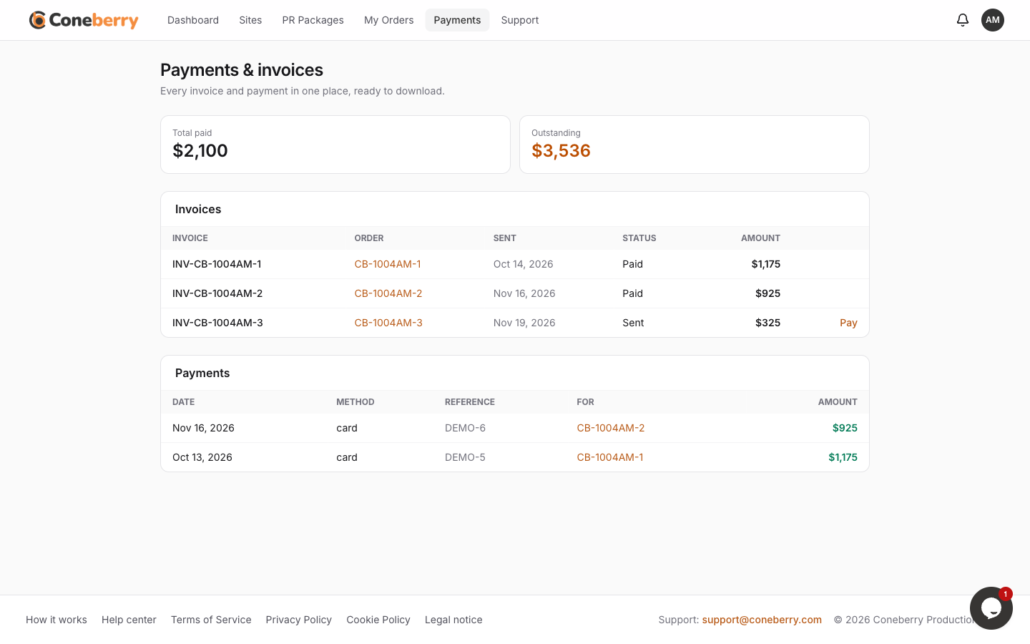
Invoices appear under Payments once your content is approved.
After payment, each site moves from In queue to Submitted, Publishing and Published, and each live link is posted in the order chat.
What if a publication says no?
Publications make their own editorial decisions, and Coneberry does not control them. If a publication declines the content, you get a replacement of equal or greater value, or a full refund for that site. The details are in Refunds, replacements and cancellations.
Remember that some publications label content as sponsored or partner content. Coneberry never asks them to hide that, and approval does not change it.
Tips for a smooth approval
- Reply in the chat the same day if you can. Publishing cannot start until you approve.
- Check facts, names, dates and links yourself. You know your business best.
- Collect feedback from colleagues before you reply, so you ask for changes once.
- Keep one thread: use the order’s Messages rather than email for edits.
Why approval protects you
Your name, your company and your claims are on the page. A second pair of eyes catches typos, broken links and wording that does not match what you meant, and your approval is the last check by the person who knows the facts best. It also keeps a clear record: the approved version and your reply sit together in the order chat, so there is no doubt later about what was agreed.
For press releases, approval is also the moment to confirm the quotes. Each quote is attributed to a real person, so make sure that person has seen and agreed to the words before you say yes.
Frequently asked questions
Can something be published without my approval?
No. Nothing is published until you approve it.
How long does the review take?
Usually within one working day. Replies in the chat usually arrive within one working day too.
Can I change my mind after approving?
Tell us in Messages straight away. Changes are possible until the content has been sent to the publications.
Do I pay before I approve?
No. Payment follows approval and comes before publication.
See what you can publish
Browse publications by price, DR and traffic on the Sites page. It is free and needs no account.
More step-by-step help is in the Coneberry Help Center.


