

Order Stages and the Project Flow: How to Track Your Publishing Order
When you pay for something that depends on other people, such as editors, publications and review teams, the hardest part is often not knowing where things stand. Has anyone seen my content? Is it my turn or theirs? When will the link go live? Good order status tracking answers those questions without you having to ask.
Coneberry is a place to get articles and press releases published on real news and business websites, so your brand is seen on trusted publications, found in search and mentioned in AI answers. Every order runs through your free dashboard at dashboard.coneberry.com, and each one shows a status and a Project Flow checklist so you always know what happens next. This guide explains how to read them.
Where do you see your order?
Open My Orders to see all your orders with their current status. Click one to open the order page. Order numbers look like CB-1001JD-1. The order page has three main parts: the status at the top, the Project Flow checklist on the right and the Messages chat with our team.
Also worth a look: Content Review and Approval: How Your Article Gets the Green Light and No Content Yet? How Coneberry Writes Your Article or Press Release.
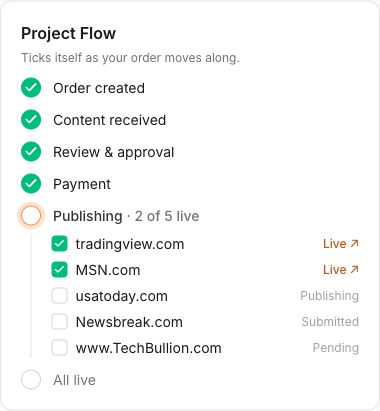
The Project Flow checklist on the right ticks each step as it is done.
What does each status mean?
The status tells you the stage, and just as usefully, whose turn it is:
- Waiting for your content: your turn. Share a Google Doc link, or ask us to write the content.
- Content received, in review: our turn. The team checks your content, usually within one working day.
- Preview ready for your approval: your turn. Read the preview in Messages and approve it or ask for changes.
- Awaiting payment: your turn. The invoice is ready; press Pay now.
- Publishing: our turn. Your content is being published on each site.
- Completed: all links are live.
- Cancelled: the order was stopped.
If you are waiting for something, the status is a quick check of who has the next move. Three of the statuses are yours, and each has a clear action attached.
How does the Project Flow work?
The Project Flow is the full checklist for one order. It always follows the same sequence:
- Order created: you placed the order. This costs nothing upfront.
- Content received: you sent a Google Doc or answered the questionnaire.
- Review & approval: the team checks the content and you approve it.
- Payment: you pay the invoice in full, after review and before publication.
- Publishing: one line per site, marked Pending and then Live.
- All live: every link is published and the order completes.
Sometimes the team adds a step for your order, for example “Headline approved”. Those steps appear in the same list and tick when finished, so the checklist stays an accurate picture of your specific order.
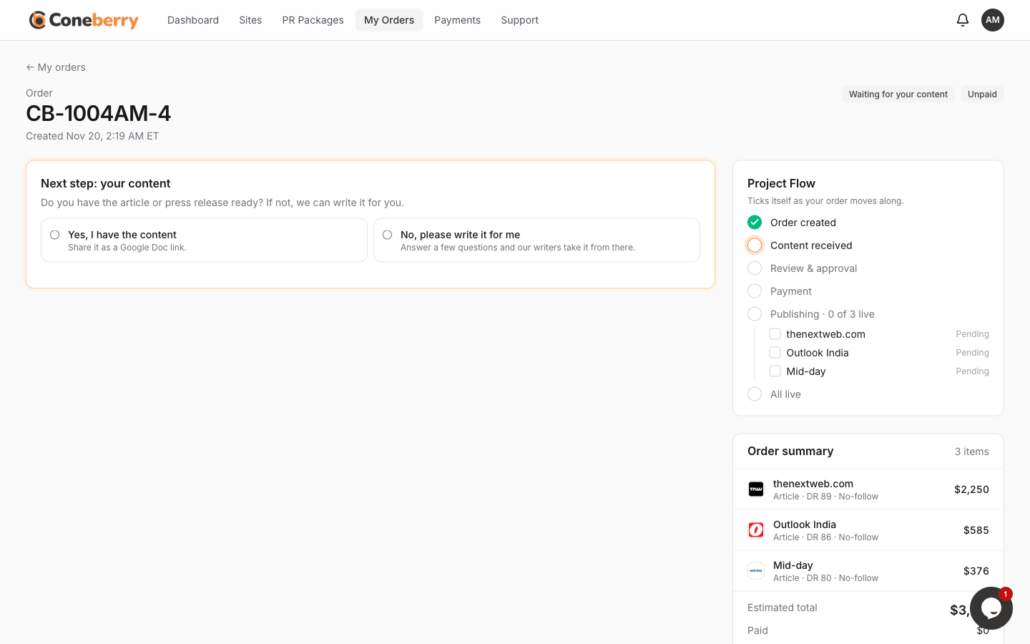
The first step you take is sending your content.
What do the site statuses mean?
During publishing, each site in your order has its own status. That matters because publications work at different speeds, so one site can be live while another is still being prepared.
- In queue: waiting for the earlier steps to finish.
- Submitted: sent to the publication.
- Publishing: the publication is preparing it.
- Published: live, and the link is on your order and in the chat.
- Rejected: the publication declined the content. You get a replacement of equal or greater value, or a full refund for that site.
For the refund rules in full, see refunds, replacements and cancellations.
How do you find out when something changes?
You do not need to keep the page open. Coneberry tells you about what needs you:
- An email from noreply@coneberry.com with a View Order button. All emails about one order arrive in one thread.
- The bell at the top of the dashboard for unread updates.
- Browser notifications, if you turn them on, even when the tab is closed.
- The Recent updates feed on your dashboard home, which shows the live status of every site in every order.
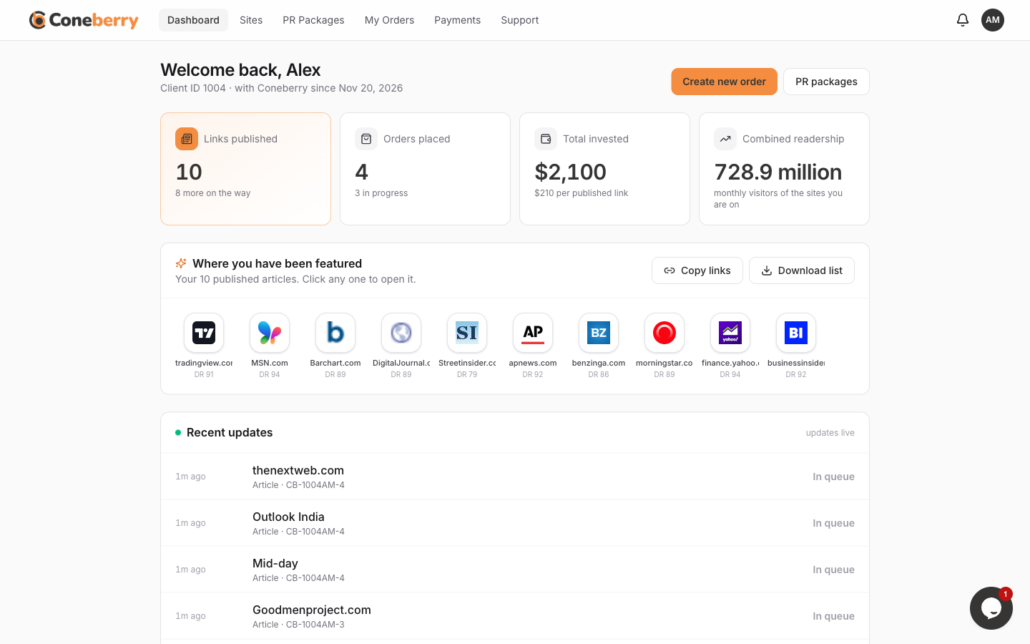
Recent updates on the dashboard show every site in every order.
Questions about a specific order belong in that order’s Messages chat. See how long publishing takes for what to expect on timing, and reviewing and approving your content for the approval step.
What should you do at each stage?
A quick routine keeps an order moving. When you place an order, send your content on the same day if you can. While the team reviews it, keep an eye on your email and the bell on the dashboard, because a preview may need your reply. When the invoice appears, pay it promptly, because publishing starts after payment. Once publishing begins, there is nothing to do but watch the per-site lines go from Pending to Live.
If a stage seems to take longer than usual, do not wait in silence. Write in the order’s Messages, and the team will tell you what is happening and who is waiting on whom. You can also open a support ticket from the support page for anything that is not about one specific order.
What does a completed order give you?
A completed order means every link is live. Each link was posted in your order chat as it went live, and the logo of each publication is added to the wall on your dashboard, where you can copy all links or download the list as a CSV. Packages with a distribution report include it at the end.
Frequently asked questions
Why is my order still waiting for content?
That status means the next step is yours. Open the order and either share a Google Doc or choose the option to have us write the content.
Can I pay before the content is approved?
Payment comes after the content is reviewed and before publication. The invoice appears on your order when it is ready.
What does Rejected mean for me?
The publication declined the content for that site. You choose between a replacement of equal or greater value and a full refund for that site.
Who can I ask if the status looks stuck?
Write in the order’s Messages. Replies usually come within one working day.
Take a look around
You can see how sites and packages are presented before you ever place an order. Browse the Sites page for free, no account needed.
More step-by-step help is in the Coneberry Help Center.


