

How Paying for Online PR Works: Invoices, Timing and Safe Payment
Buying PR coverage can feel uncertain if you have never done it. When do you pay? Do you pay before you have seen anything? What does the invoice look like, and how do you know the payment page is safe? Clear answers matter, because paying for something you cannot see yet takes trust.
This guide explains how payment works on Coneberry, step by step. It covers when you are asked to pay, how to pay your invoice, where to find your records, and what to do if something looks off. It reads best if you are new to Coneberry, so we start from the beginning.
What is Coneberry?
Coneberry is one place to get articles and press releases published on real news and business websites, so a brand builds its reputation and authority online. You browse more than 5,000 publications, choose sites or PR packages, send your content (or ask Coneberry to write it), approve it, pay, and receive live links. It all happens in the client dashboard, and signing up is free.
Also worth a look: How Long Does Publishing Take? A Realistic Timeline for Articles and Press Releases and Order Stages and the Project Flow: How to Track Your Publishing Order.
Placing an order costs nothing
When you tick sites on the Sites page or choose a package, you press Create order or Order, check the summary, tick the Terms box and press Place order. At that moment you pay nothing. The order is a request that lets Coneberry’s team and you work together on content and details. The total you see on the way in is an estimate; the invoice is the final amount.

The order summary appears before you place the order, and nothing is charged yet.
When do you pay?
You pay after your content is reviewed and before publication, in full. The sequence is:
- You place the order and send your content, or answer the questionnaire so the team can write it.
- The team reviews the content, usually within one working day, and may share a preview for your approval.
- Once you approve it, the invoice is added to the order and the status changes to Awaiting payment.
- You pay. Coneberry then sends your content to the publications.
- Live links appear in the order chat and on the order.
This order protects both sides. You have approved exactly what will be published before any money moves, and the publications are only contacted once payment is in. Partial payments are available only if they are agreed in writing on your order page.
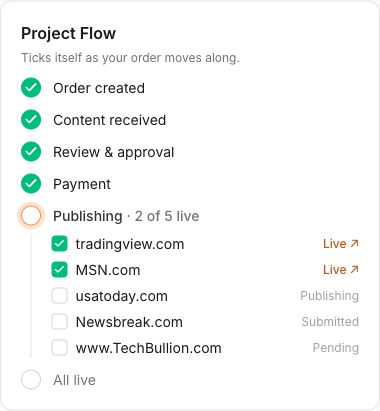
The Project Flow checklist shows the Payment step between approval and publishing.
How do you pay your invoice?
You can start from the order page or from the Payments page.
- Find the invoice for your order.
- Press Pay now.
- Complete the payment on the secure payment page that opens.
When your payment is recorded, a message appears on your order and publishing starts. The available payment methods are shown on the payment page. If you need a method that is not offered, ask in the order’s Messages or write to support@coneberry.com.
Is it safe?
Coneberry never asks for card details by email or chat. If anyone asks for them in a message, do not send them. Card payments go through a payment provider on a secure page, and Coneberry does not store card numbers. Invoices and payment links also come as email from noreply@coneberry.com, and all emails about one order arrive in a single email thread, so a stray message outside that thread is easy to spot. If something looks wrong, check the invoice on the Payments page, which is the source of truth.
Where do you find invoices and receipts?
The Payments page lists every invoice with its order, date, status and amount. At the top you can see what you have paid in total and what is outstanding. Invoice PDFs can be downloaded there when available, which is handy for your accounting team. All prices are in US dollars, and times in the dashboard are shown in US Eastern time.
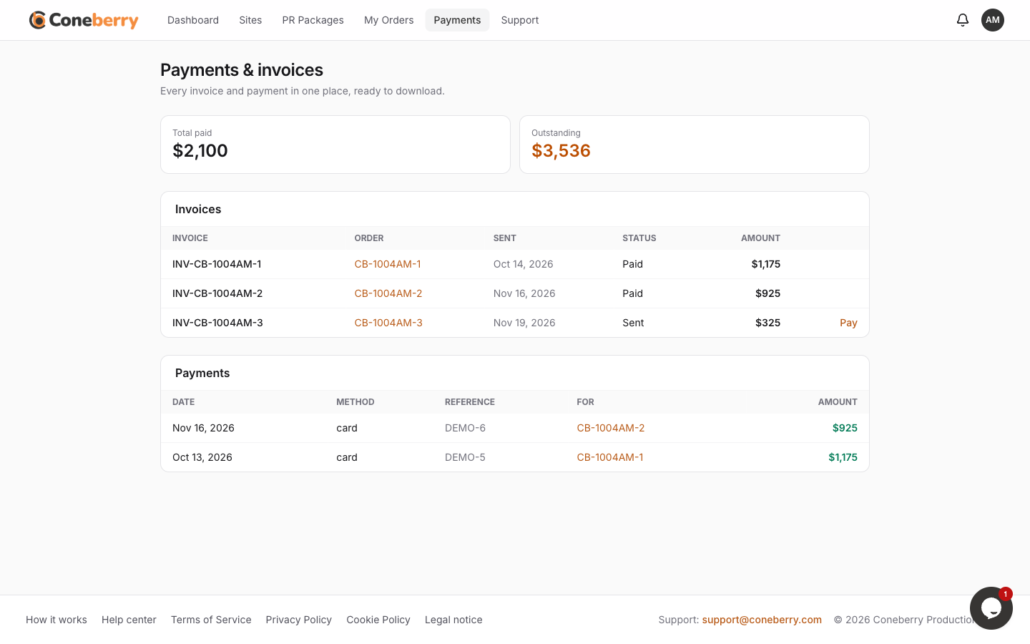
The Payments page lists every invoice, its status and your totals.
What if the amount looks wrong?
Write in the order’s Messages or to support before you pay or begin a chargeback. The team can check the invoice against what was agreed and correct it quickly. Most differences come from changes made to the selection after the first estimate, and a message clears them up in a few minutes.
What happens if something changes after you pay?
If a publication declines your content, you can choose a replacement of equal or greater value or a full refund for that site. You can cancel before work starts for a full refund, and after work starts you can cancel sites not yet sent to a publication. Once an article is published, it cannot be refunded. The full rules are in our guide to refunds, replacements and cancellations, and to understand how estimates relate to invoices, read how pricing works.
Tips for a smooth payment
A few habits make paying quick and keep your records tidy. Turn on browser notifications so you see the invoice the moment it is added, rather than waiting for an email. Open the invoice from the order page, where its context is right beside it, and check that the order number and amount match your approved content before you press Pay now.
If your finance team needs documentation, download the invoice PDF from the Payments page when it is available and note the order number, which looks like CB-1001JD-1. If you need your company name or details on the invoice, tell the team in the order Messages before you pay, since that is much easier than changing a record afterwards.
Lastly, pay promptly once you have approved your content. Publishing starts only after payment is recorded, so an unpaid invoice is the most common reason an order waits.
Frequently asked questions
Do I pay before or after my article is published?
Before. You pay in full after the content is approved, and the content is sent to publications once the invoice is paid.
Can I pay in instalments?
Only if it is agreed in writing on your order page. The default is full payment in advance.
Which currency do you charge in?
US dollars (USD).
Where can I download my invoice?
On the Payments page, when a PDF is available for that invoice.
See the publications first
You do not need an account to look around, and placing an order costs nothing. Browse the publications at dashboard.coneberry.com/user/sites and judge the fit before any payment comes into play.
More step-by-step help is in the Coneberry Help Center.


